Kong’s official documentation is quite detailed — readers should refer to it first. This document serves as a personal memo and may omit some details.
There are many ways to deploy Kong Gateway. This guide uses the simplest approach: manually deploying containers with Docker.
Network
docker network create kong-networkDatabase
Here we deploy a local Postgres container.
docker volume create kong-database-volume

docker run -d \
    --name kong-database \
    --network kong-network \
    -p 5432:5432 \
    -e "POSTGRES_USER=kong" \
    -e "POSTGRES_DB=kong" \
    -e "POSTGRES_PASSWORD=kongpass" \
    -v kong-database-volume:/var/lib/postgresql/data \
    postgres:16
Run migrations:
docker run --rm --network kong-network \
    -e "KONG_DATABASE=postgres" \
    -e "KONG_PG_HOST=kong-database" \
    -e "KONG_PG_PASSWORD=kongpass" \
    kong/kong:3.9.1 kong migrations bootstrap
Kong Gateway
docker run -d \
    --name kong-gateway \
    --network kong-network \
    -e "KONG_DATABASE=postgres" \
    -e "KONG_PG_HOST=kong-database" \
    -e "KONG_PG_USER=kong" \
    -e "KONG_PG_PASSWORD=kongpass" \
    -e "KONG_PROXY_ACCESS_LOG=/dev/stdout" \
    -e "KONG_ADMIN_ACCESS_LOG=/dev/stdout" \
    -e "KONG_PROXY_ERROR_LOG=/dev/stderr" \
    -e "KONG_ADMIN_ERROR_LOG=/dev/stderr" \
    -e "KONG_ADMIN_LISTEN=0.0.0.0:8001" \
    -e "KONG_ADMIN_GUI_PATH=/manager" \
    -e "KONG_ADMIN_GUI_URL=http://yourdomain.com:8002/manager" \
    -p 80:8000 \
    -p 443:8443 \
    -p 8001:8001 \
    -p 8002:8002 \
kong/kong:3.9.1Since a domain is configured, SSL certificates must be addressed. Kong ships with an ACME plugin that can issue certificates for your domain and auto-renew them.
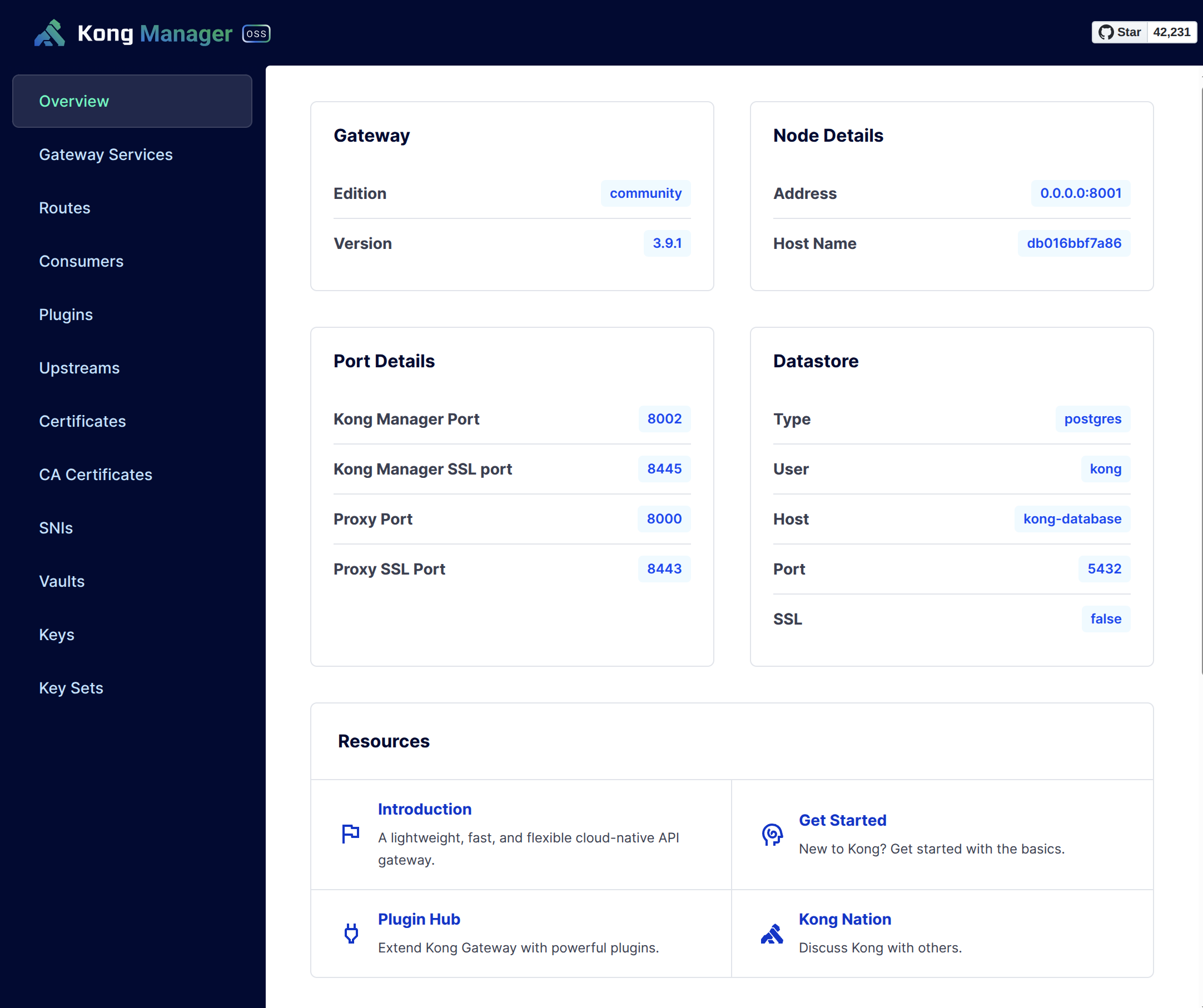
Access Kong Manager at http://yourdomain.com:8002/manager:
ACME Plugin
To use the ACME plugin for certificate issuance, there are three main steps:
- Create an
acme-service— a dummy service that handles ACME challenges - Create an
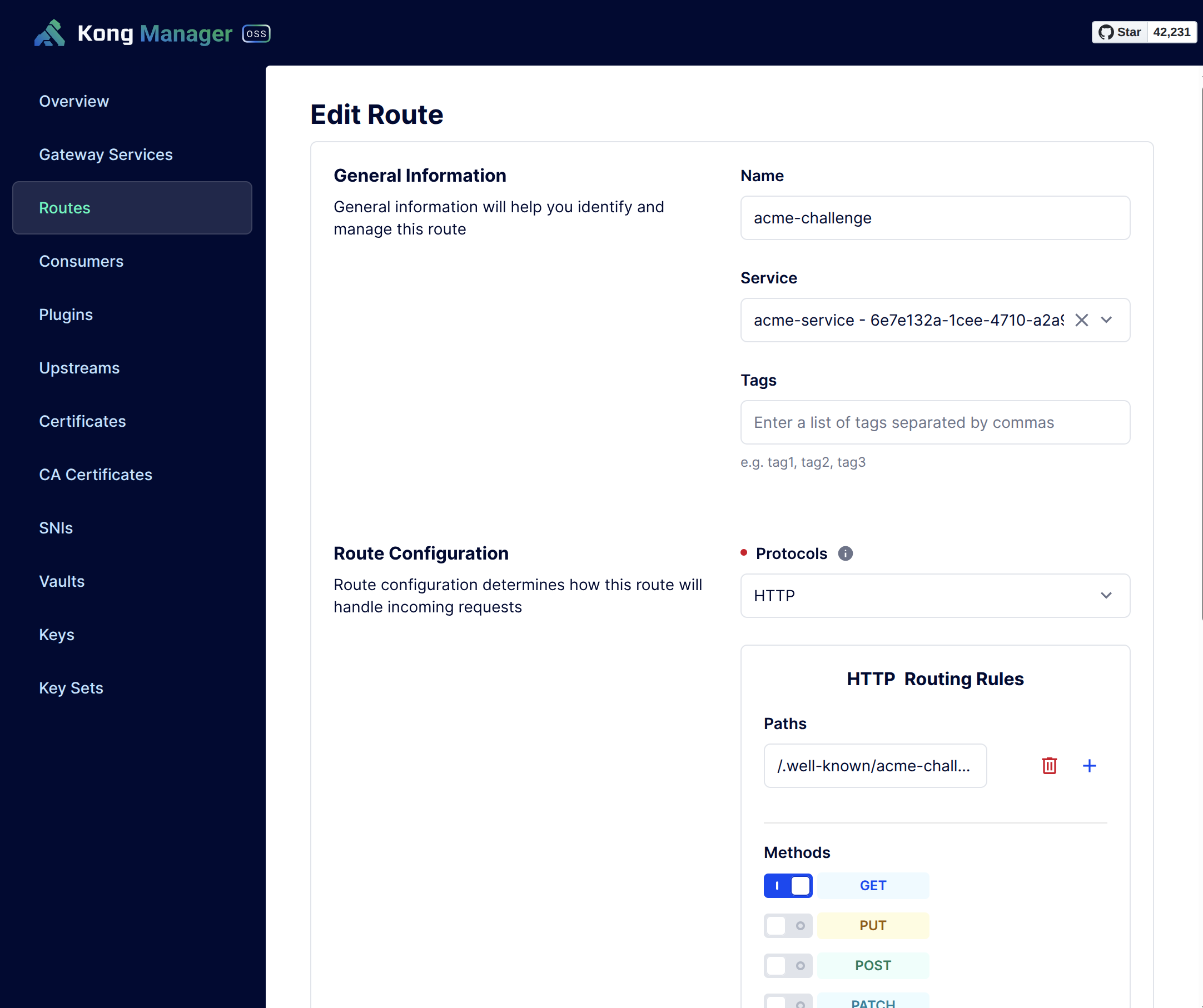
acme-routeunder the acme-service - Create an
acme-plugin— this is global and implements core ACME functionality
acme-service
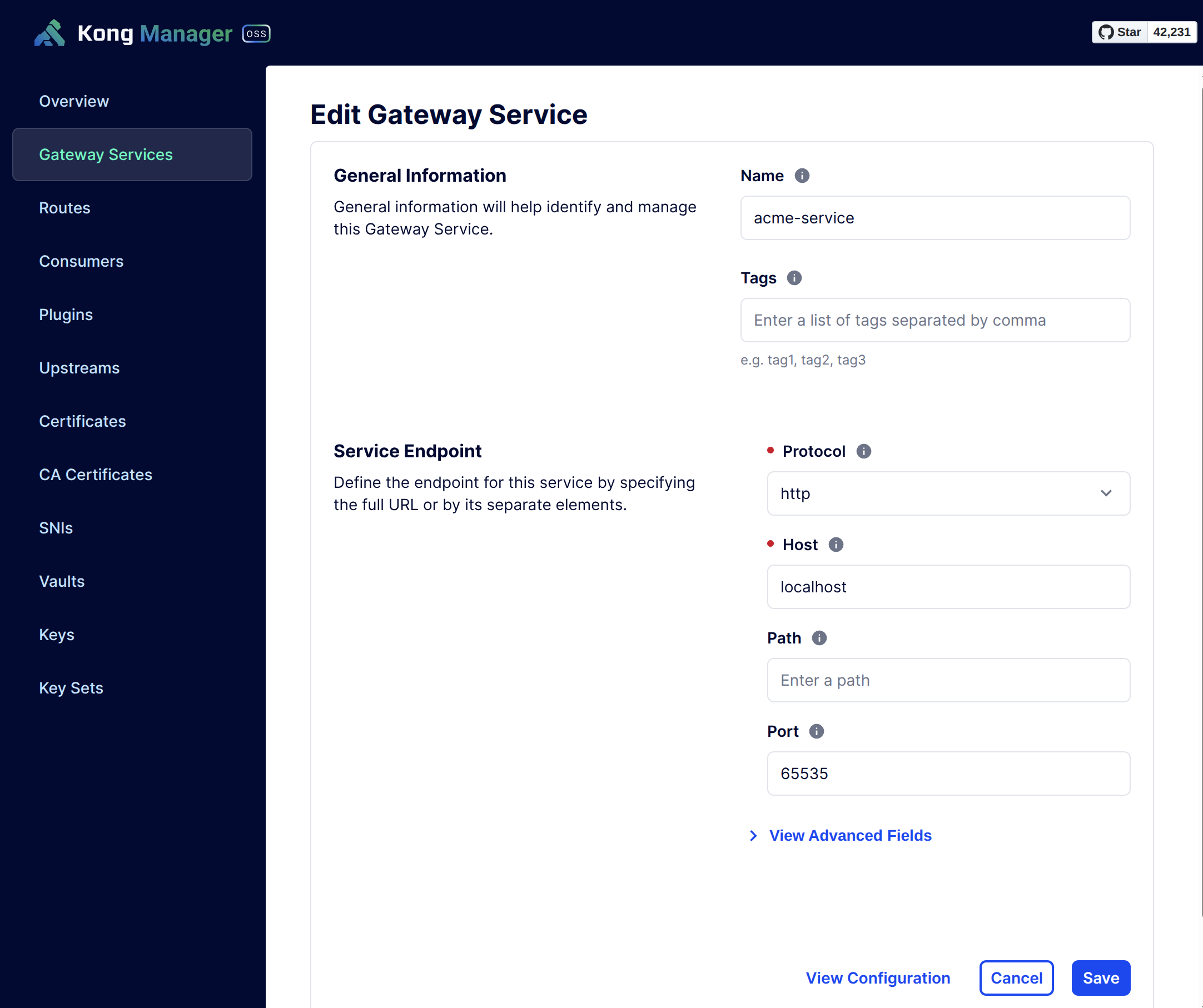
Note: host: localhost and port: 65535 are meaningless placeholder values.
acme-route
acme-plugin
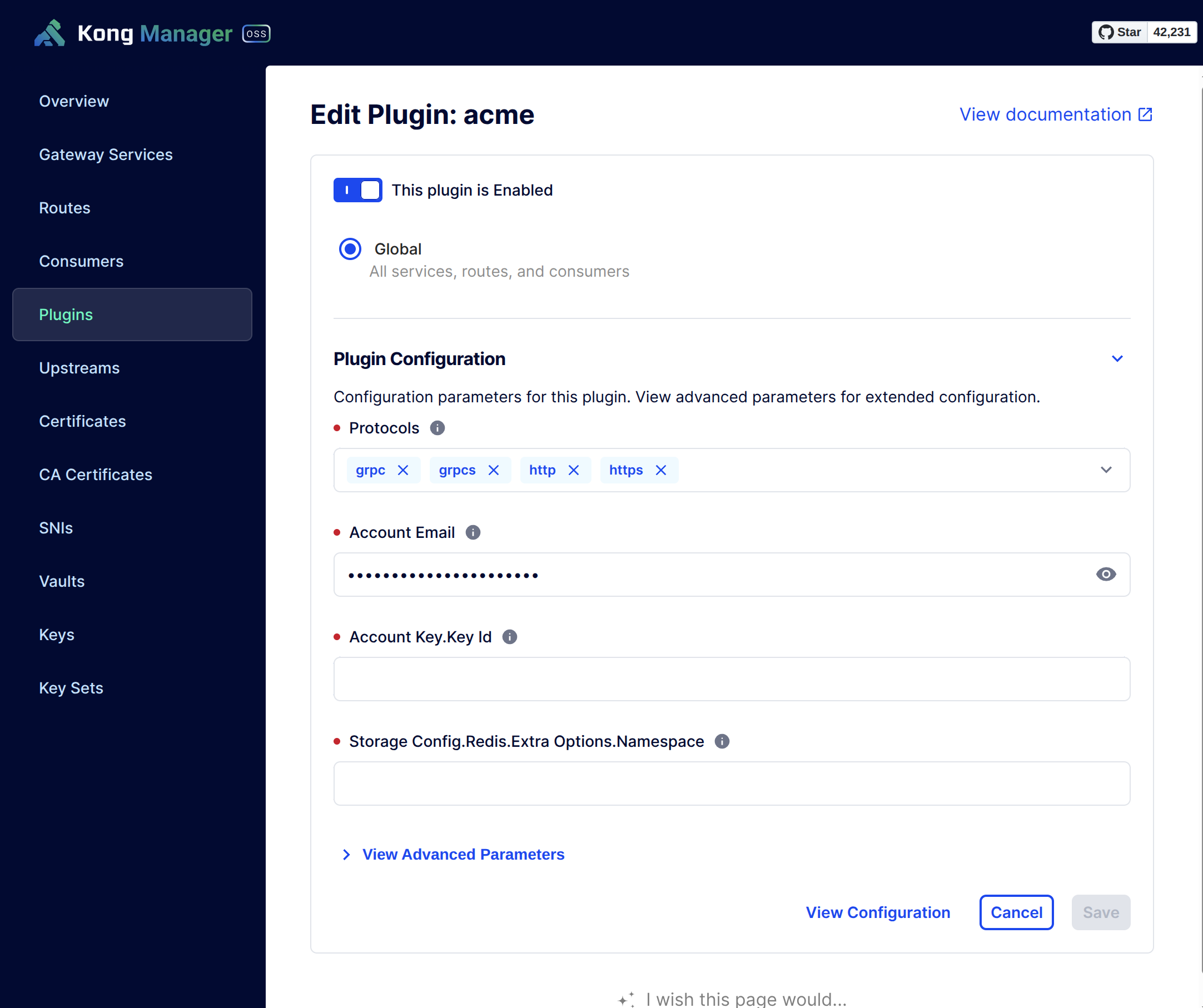
Note:
- You can add one or more domains in the
domainsoption - Or you can enable
Allow Any Domain
ACME plugin configuration is now complete.
Create SSL Certificate
Trigger certificate generation via the Kong Admin API:
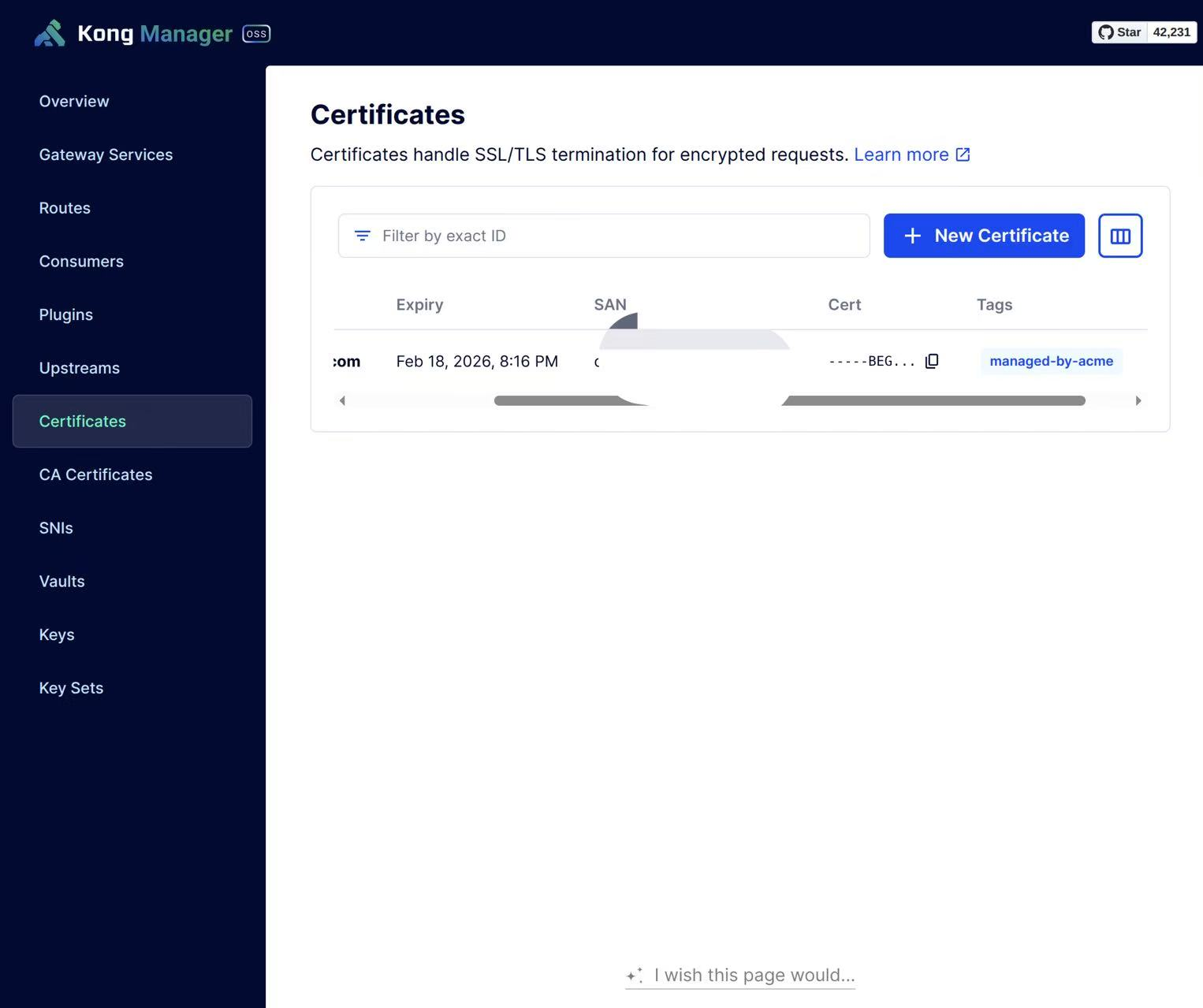
curl http://localhost:8001/acme -d host=yourdomain.comAfter a few minutes you’ll see:
{"message":"certificate for host yourdomain.com is created"}Then in Kong Manager / Certificates:
Secure Kong Manager Access (SSL + Auth)
To access Kong Manager via domain with SSL, several configuration changes are needed:
- Modify Kong Gateway environment variables
- Create Kong Manager Service & Route
- Create Kong Admin Service & Route
Modify Environment Variables
Update KONG_ADMIN_GUI_PATH, KONG_ADMIN_GUI_URL, KONG_ADMIN_LISTEN, and
KONG_ADMIN_API_URL:
    -e "KONG_ADMIN_LISTEN=0.0.0.0:8001,0.0.0.0:443 ssl" \
    -e "KONG_ADMIN_GUI_PATH=/kong-manager" \
    -e "KONG_ADMIN_GUI_URL=https://kong.yourdomain.com:443/kong-manager" \
-e "KONG_ADMIN_API_URL=https://kong.yourdomain.com:443" \Create Kong Manager Service & Route
Due to environment variable changes, using the Kong Manager UI may encounter CORS issues. Use the Admin API directly:
curl -X POST 'http://localhost:8001/services' \
  -H 'content-type: application/json' \
  --data-raw '{"name":"kong-manager-service","port":8002,"url":"http://localhost:8002"}'
Create route:
curl -X POST 'http://localhost:8001/services/<service-id>/routes' \
  -H 'content-type: application/json' \
  --data-raw '{"name":"kong-manager-route","protocols":["http","https"],"strip_path":false,"hosts":["kong.yourdomain.com"],"paths":["/kong-manager"]}'
Create Kong Admin Service & Route
Create service:
curl -X POST 'http://localhost:8001/services' \
  -H 'content-type: application/json' \
  --data-raw '{"name":"kong-admin-service","port":8001,"url":"http://localhost:8001"}'
Create route:
curl -X POST 'http://localhost:8001/services/<service-id>/routes' \
  -H 'content-type: application/json' \
  --data-raw '{"name":"kong-admin-route","protocols":["http","https"],"strip_path":false,"hosts":["kong.yourdomain.com"],"paths":["/"]}'
Configure Authentication Plugins
The open-source Kong Manager has no access control by default. With domain access enabled (public internet accessible), this is dangerous.
Solutions:
- Enable IP whitelisting on the server
- Add authentication plugins to Kong Manager
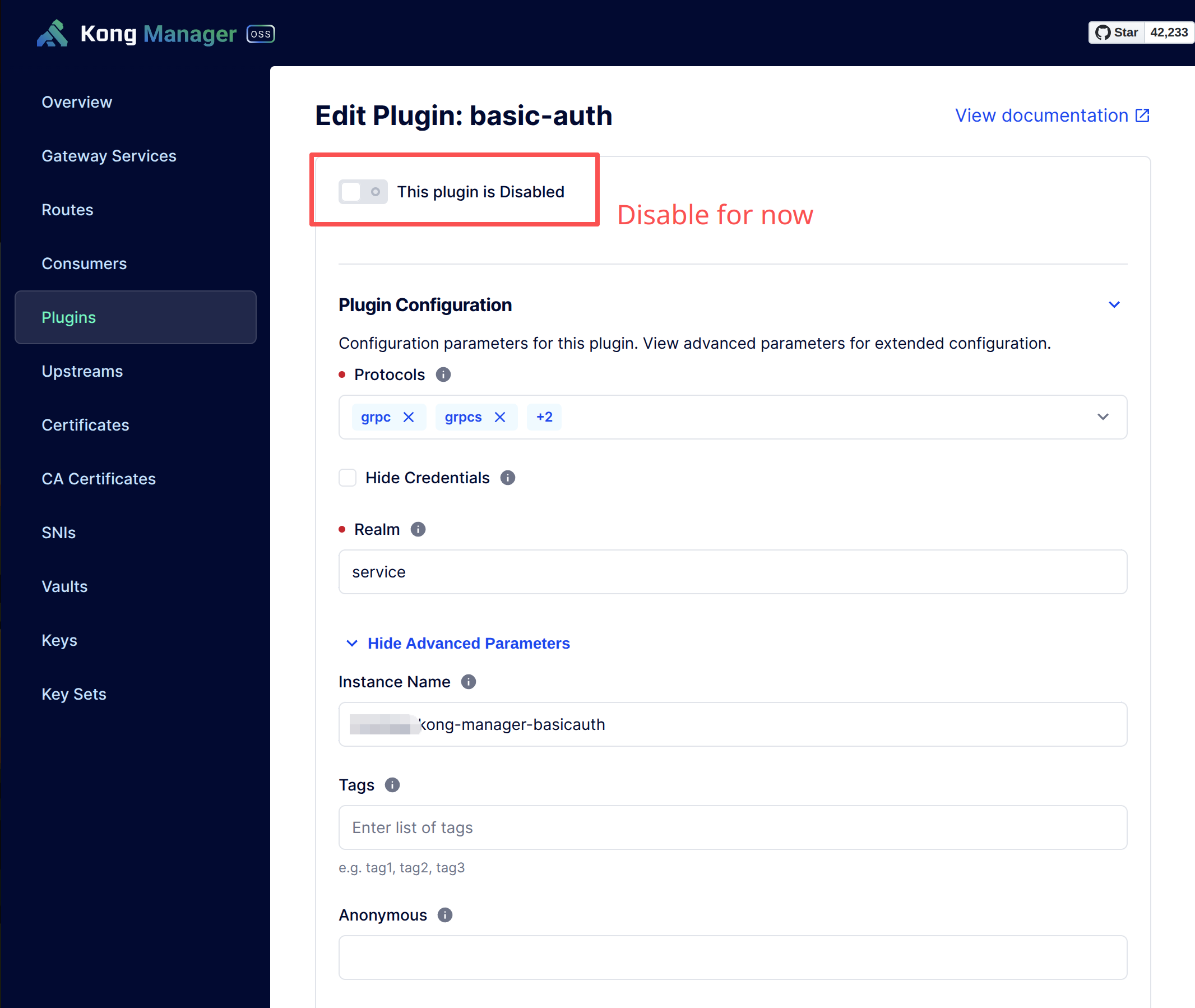
We use Basic Auth because browsers have excellent support for it — a native auth dialog appears without any Kong Manager UI modifications.
Basic Auth Plugin
Configure Basic Auth for Kong Manager Service:
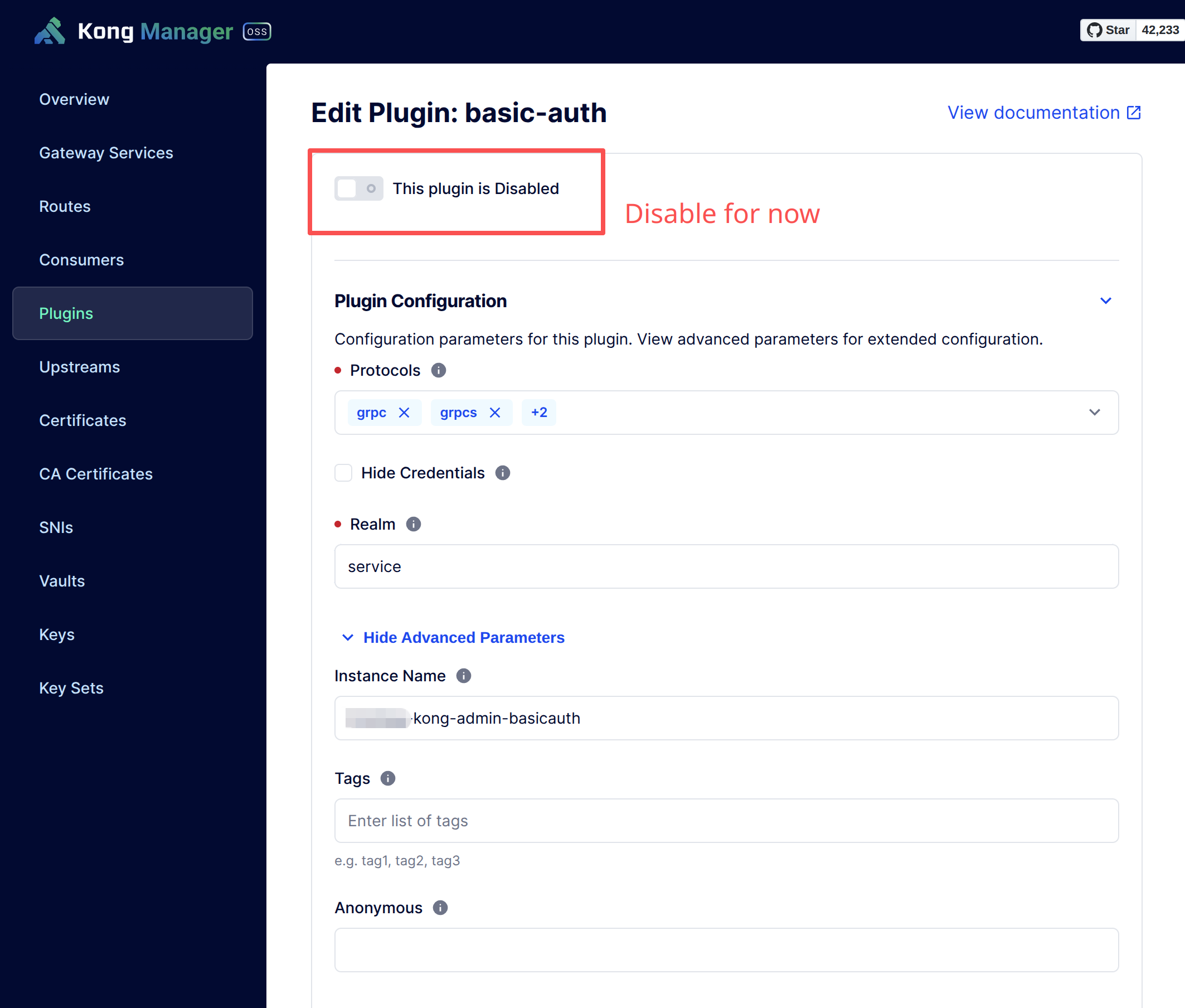
Configure Basic Auth for Kong Admin Service:
ACL Plugin
Basic Auth alone is insufficient — any credentials with Basic Auth on Kong could access Kong Manager (privilege escalation). The ACL plugin controls which credentials can access Kong Manager.
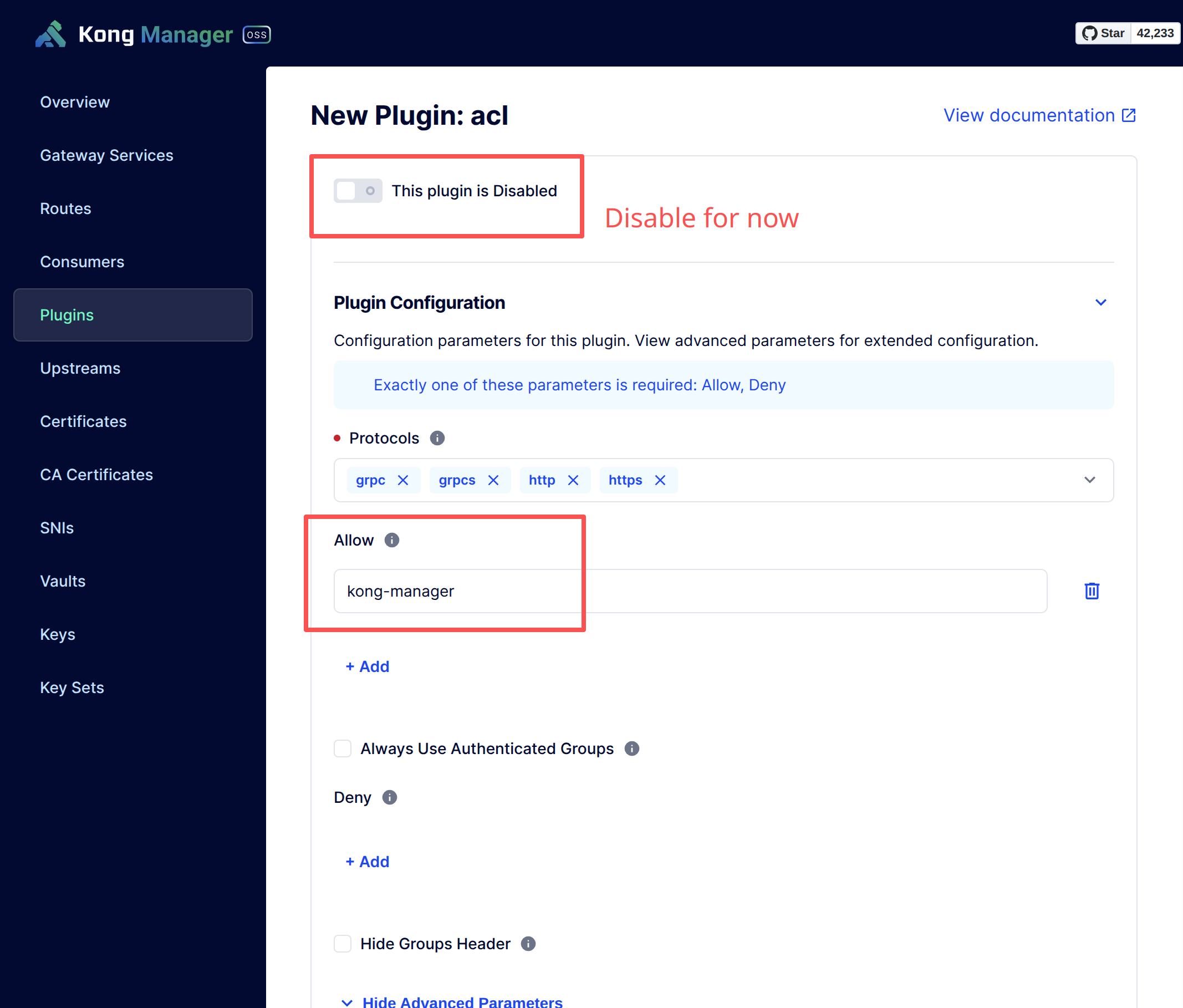
Configure ACL for Kong Manager Service:
Configure ACL for Kong Admin Service:
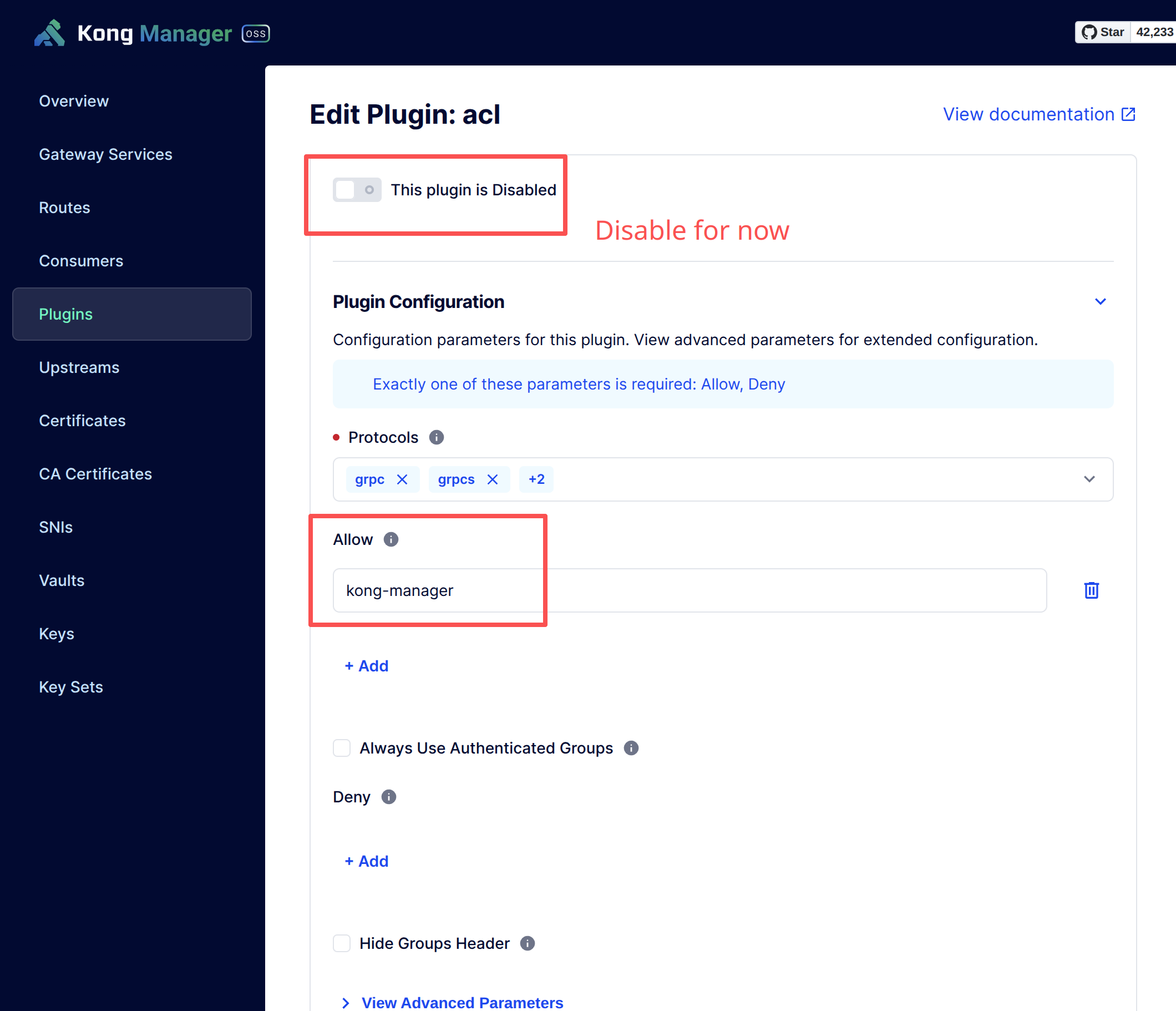
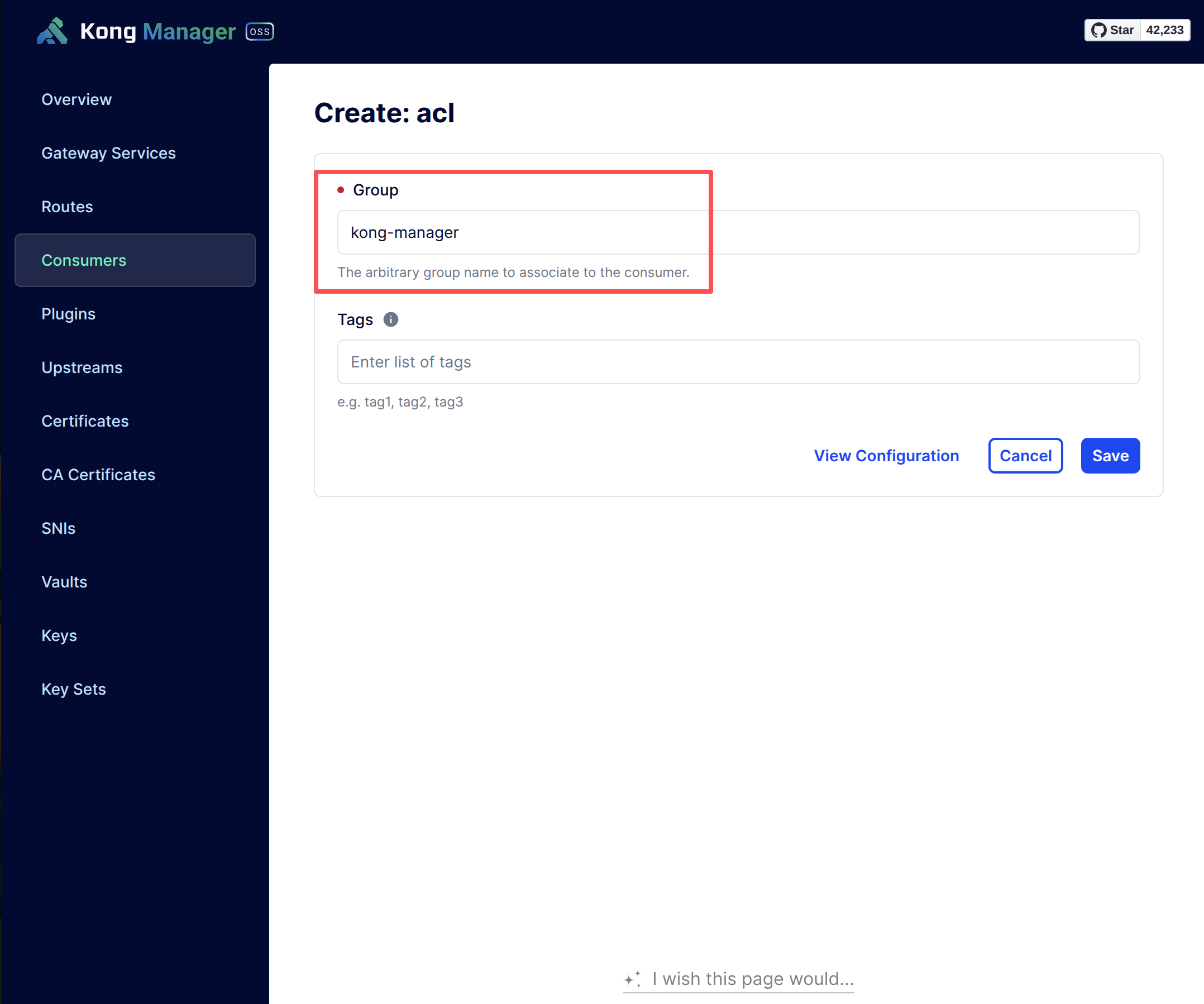
The ACL plugin’s Allow field is the Group Name, configured in the Consumer.
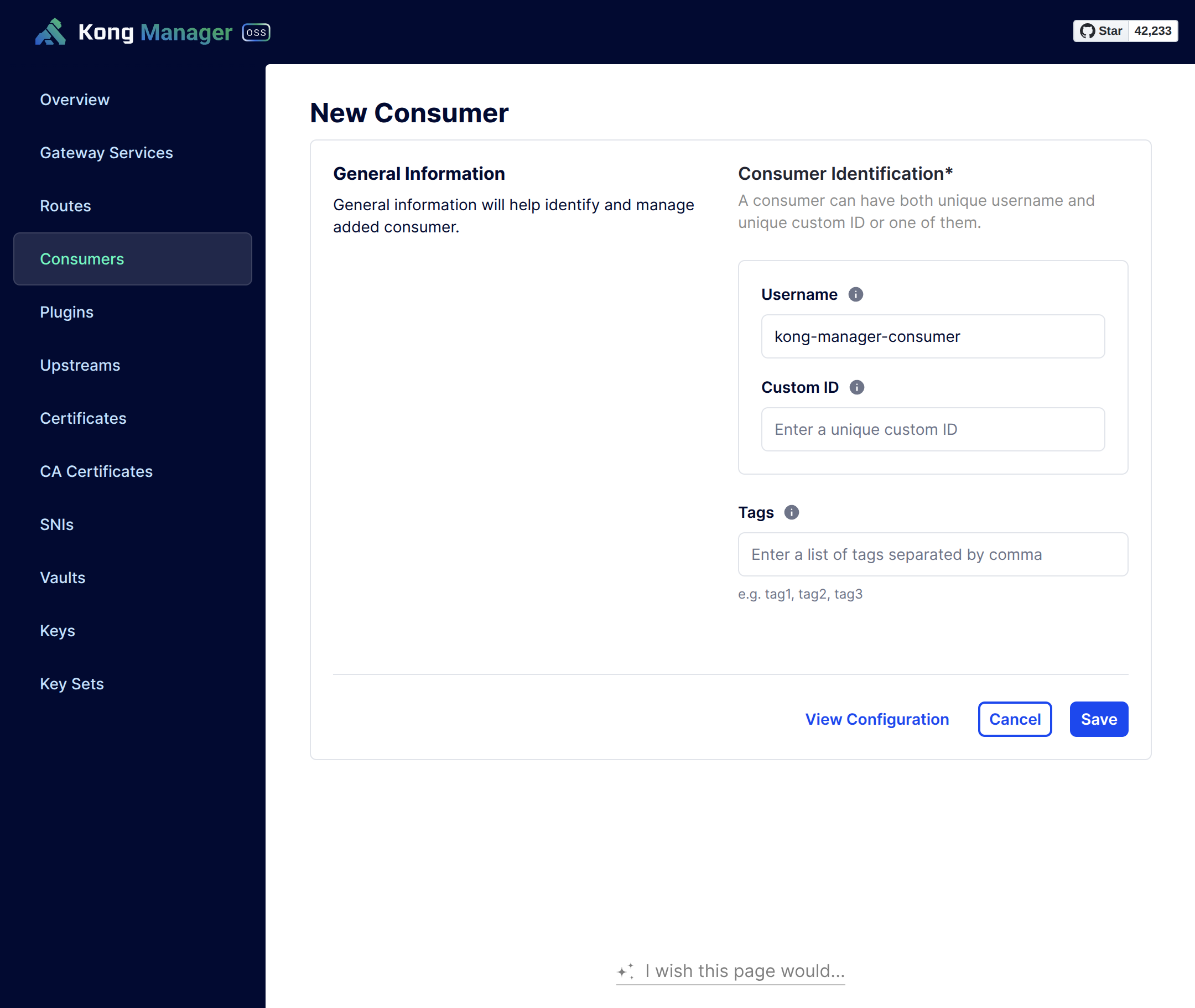
Configure Kong Manager Consumer
Create a dedicated Consumer for Kong Manager:
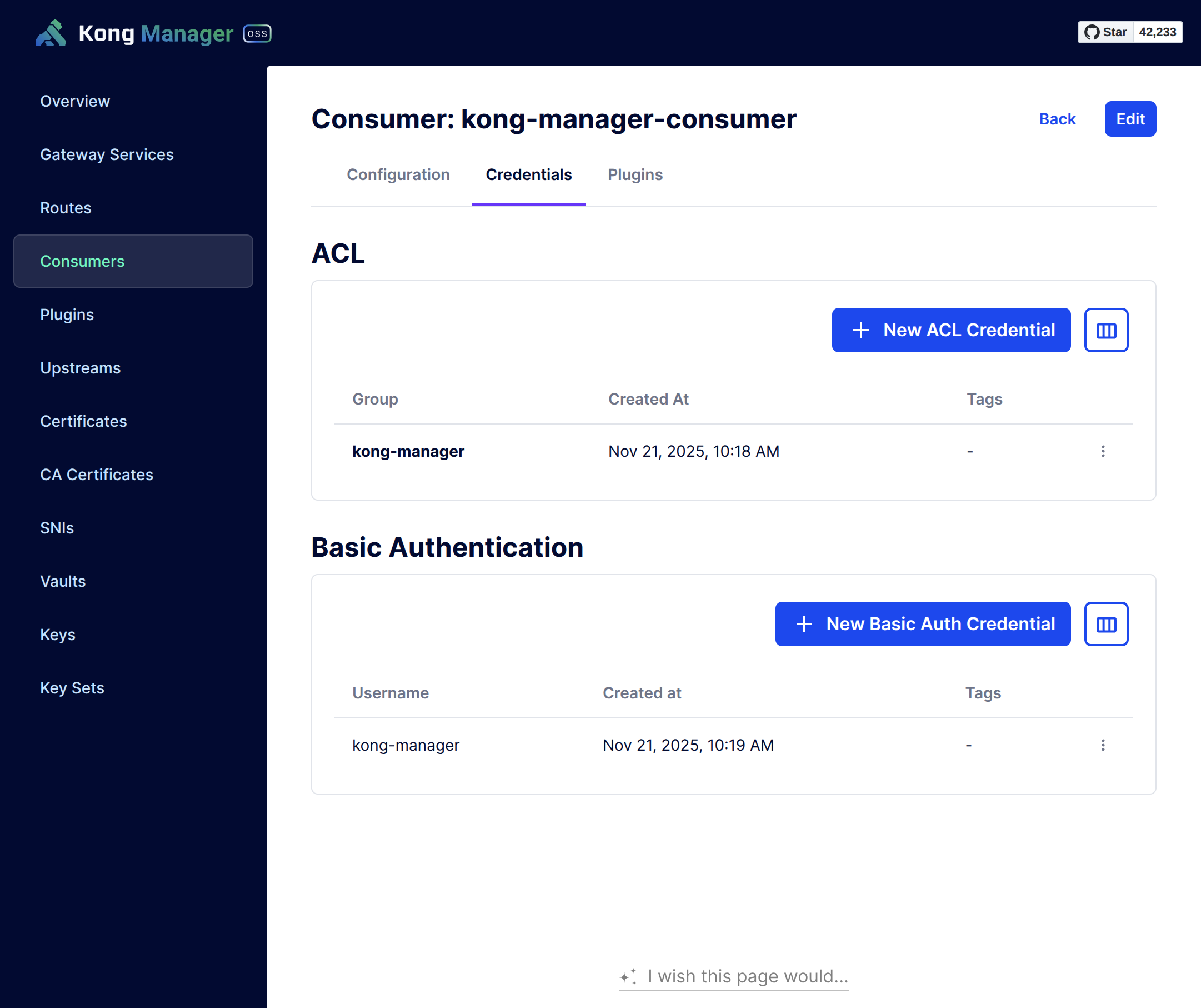
Add credentials to this Consumer:
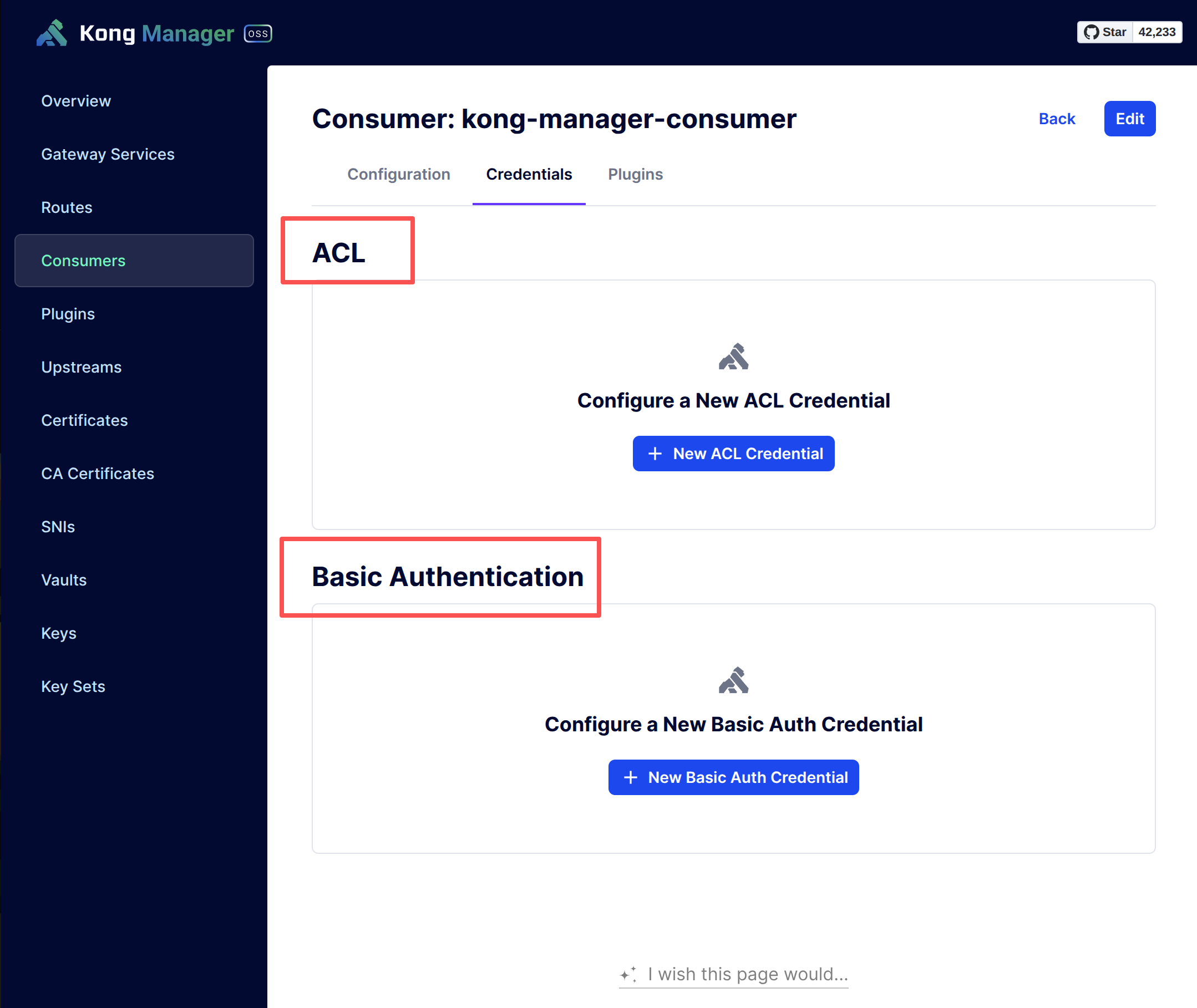
Configure ACL Credentials:
Configure Basic Auth Credentials:
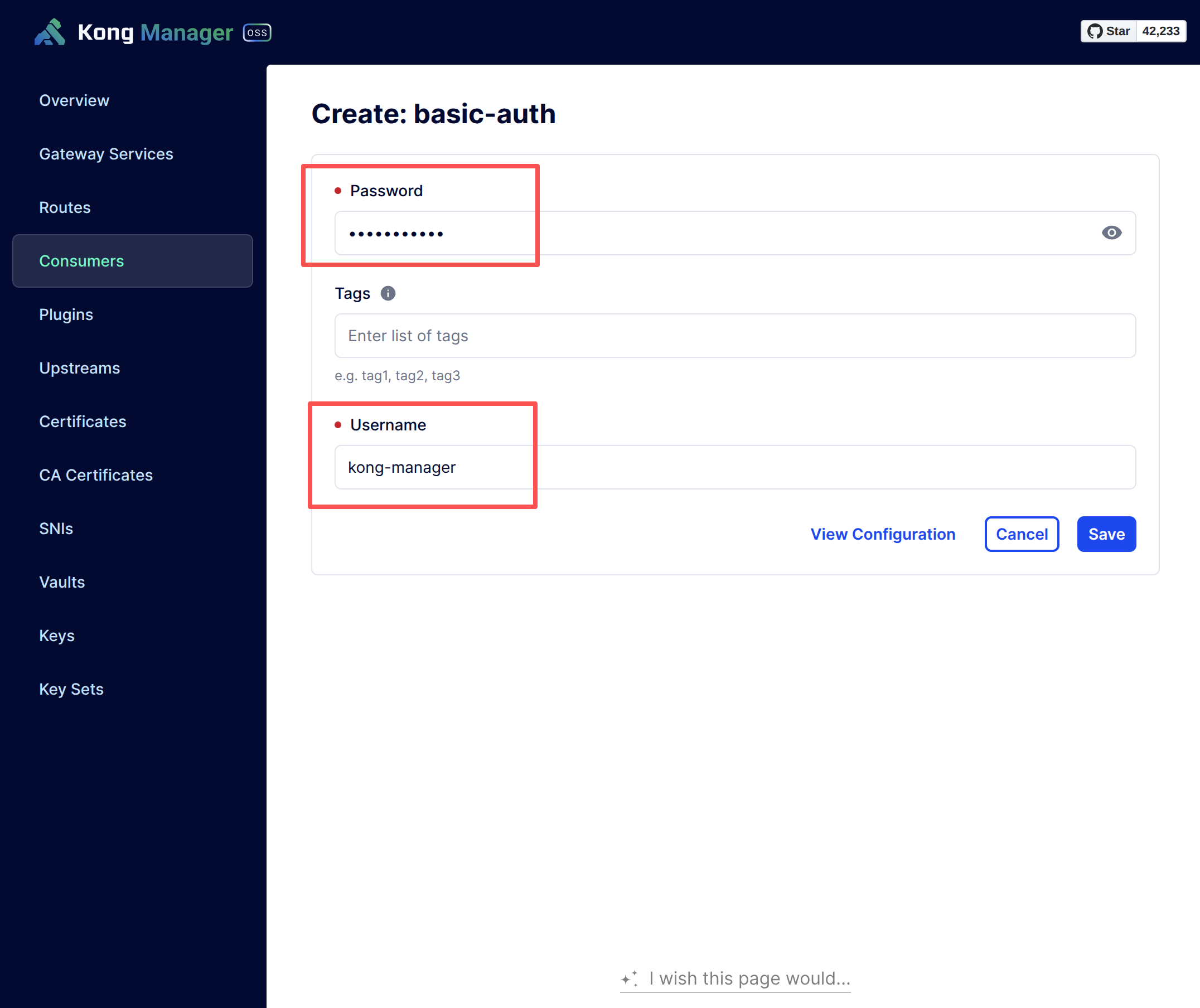
Set Username & Password as desired, ensuring security.
After configuring Consumer Credentials:
Enable Service Plugins
Enable the plugins on both Kong Manager & Kong Admin Services.
Redeploy Kong Gateway
All configuration is complete. Redeploy Kong Gateway for environment variables to take effect.
Access https://kong.yourdomain.com/kong-manager — a Basic Auth dialog appears:
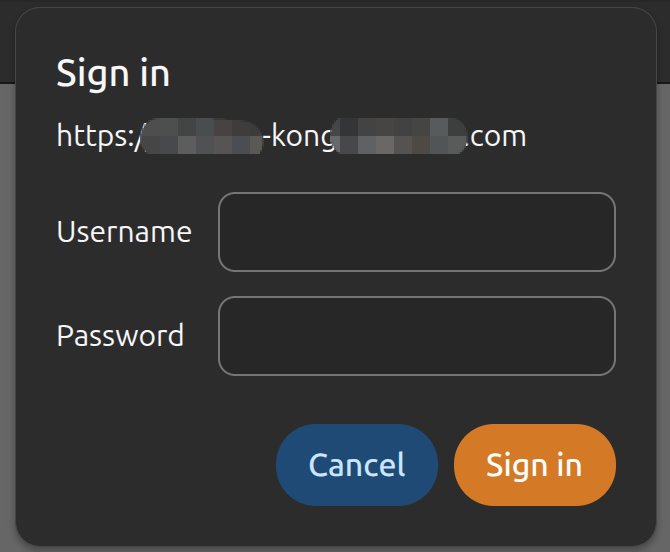
Enter the Username & Password to access Kong Manager UI.